

- All Collections
- Getting Started Guide
- Adding Your Social Media Platforms on HoLink
Adding Your Social Media Platforms on HoLink
HoLink is the perfect place to connect your audience to the various social media platforms you use.
You can add clickable social media icons to your HoLink page using the Social Icons feature. This feature allows visitors to easily find and access your social media accounts.
By using social icons, you can also keep the main links on your HoLink page focused on your most important and up-to-date content.
To start adding social icons, open your HoLink dashboard and add the social media accounts you want to display.
Tips: If you want to increase traffic to your social media platforms, place the social icons at the top of your HoLink page. If your focus is on main links such as products or websites, you can move the social icons to the bottom of the page.
Follow these steps to add your social media accounts to your HoLink page:
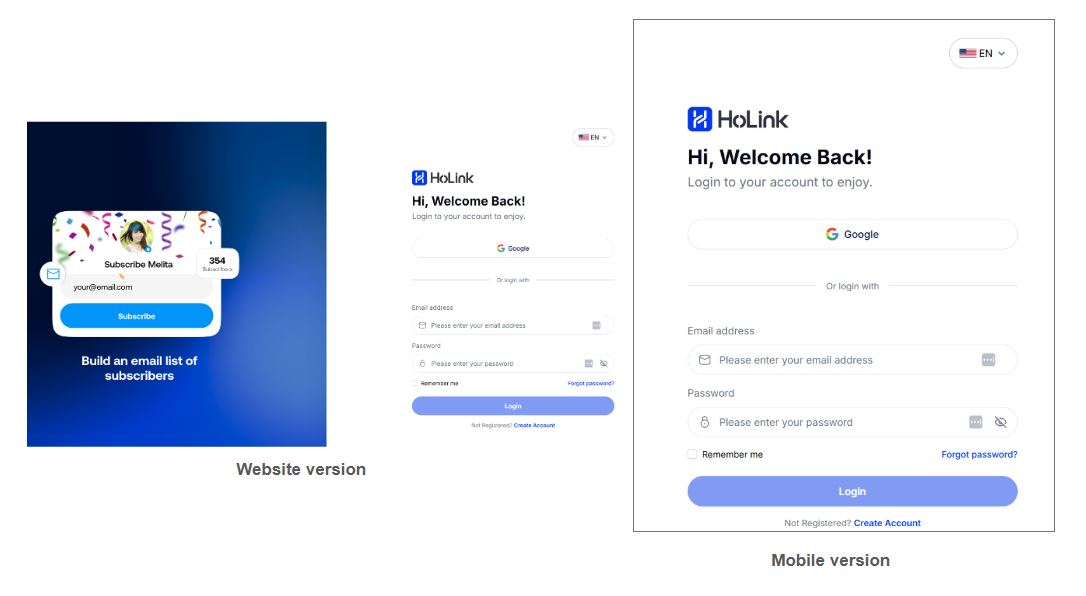
- Visit the HoLink website or click https://app.holink.com/login. You will receive a promotional claim (pop-up) to get a free trial when using the HoLink platform.
2. Go to the dashboard and click the “Link” section to start setting up and optimizing your HoLink link-in-bio page.
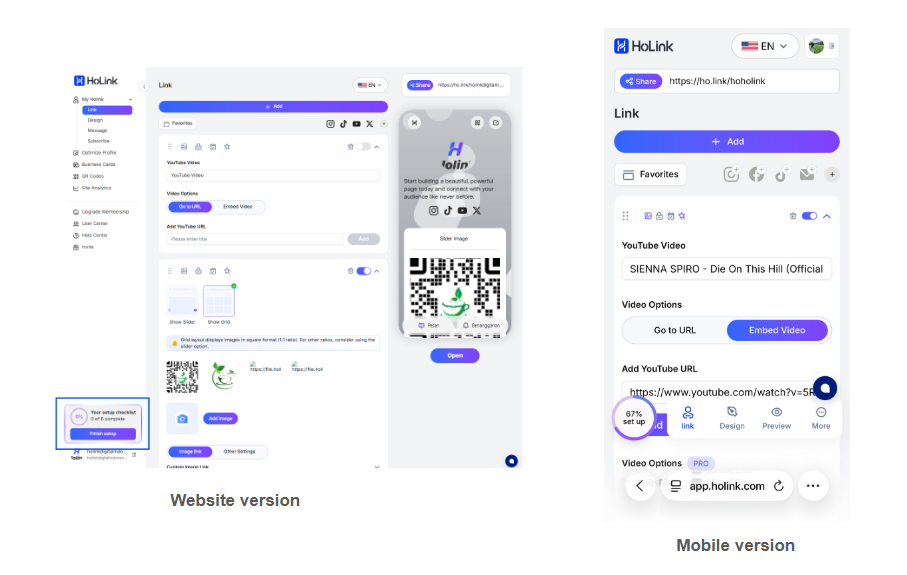
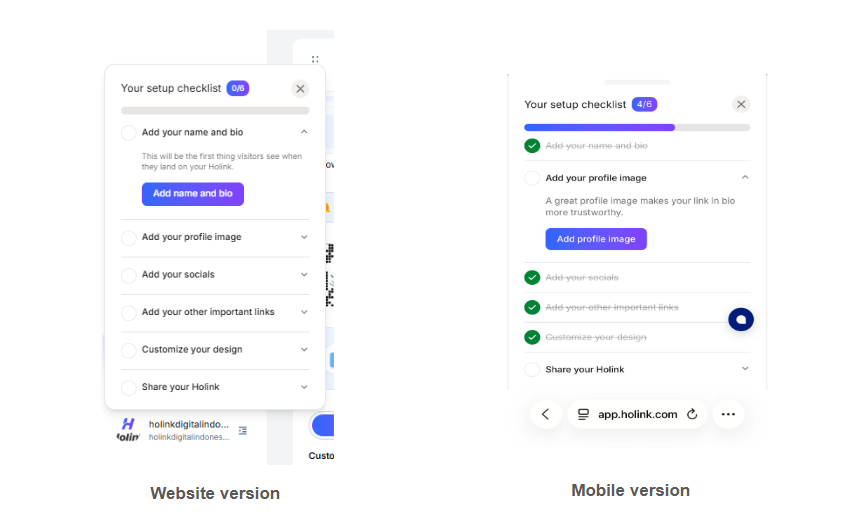
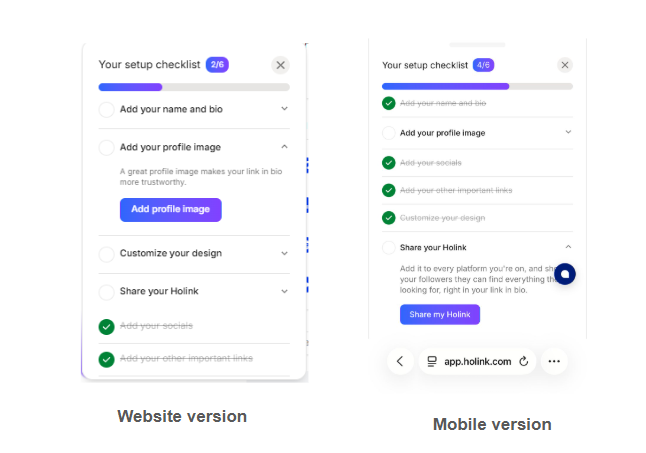
3. At the bottom left, you will find a setup checklist that serves as a guide for new users when creating their bio profile on HoLink.
4. Enter your name or brand name in the provided field. Add a short description explaining who you are and what visitors can find on your link page.
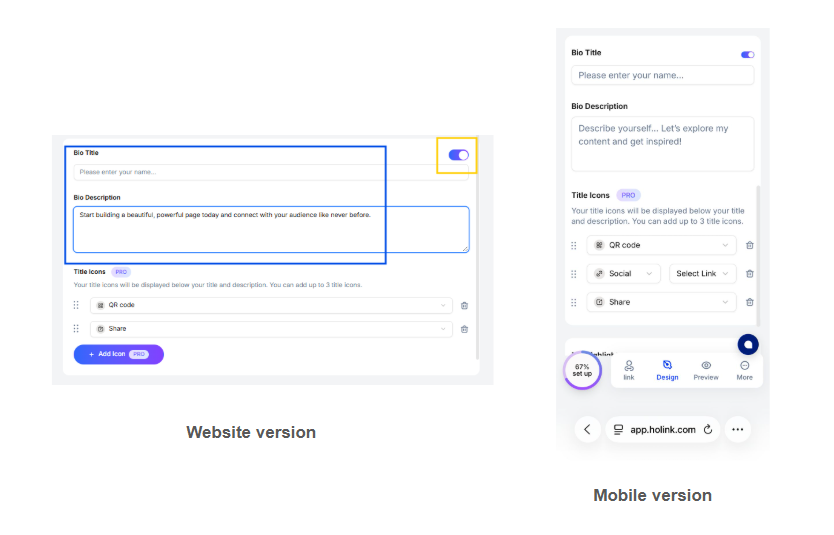
5. You can also add a profile photo to your HoLink bio to help your link-in-bio profile have a clearer identity and build trust with visitors when they first open your page.
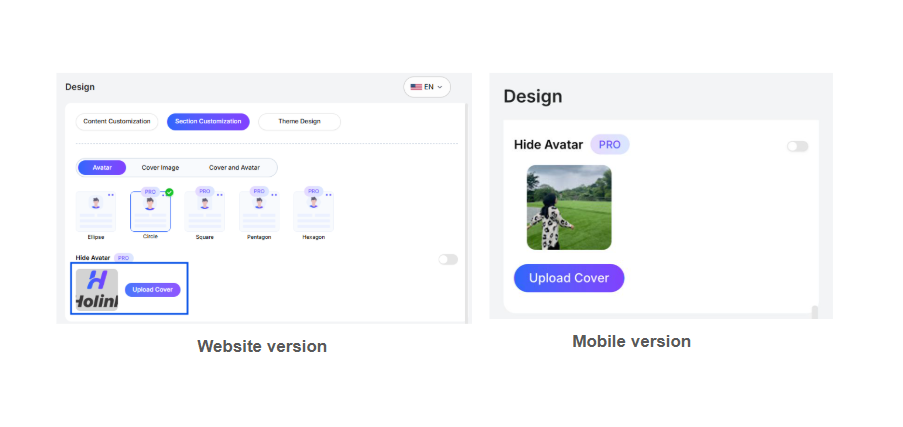
6. Connect the links on HoLink with your social media accounts to make your link-in-bio page more complete and interactive.
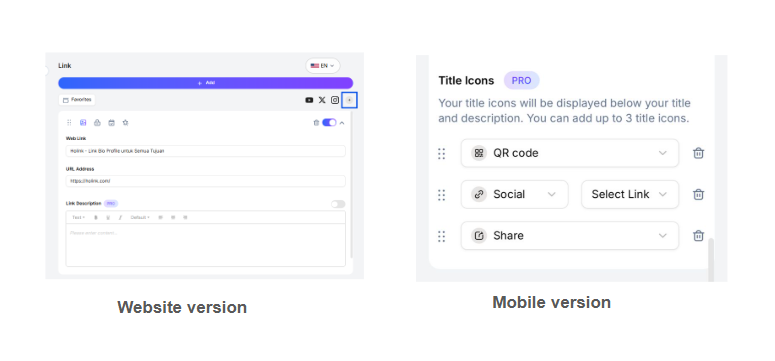
7. Add all the links you want to promote, such as websites, product pages, YouTube videos, music, portfolios, and more.
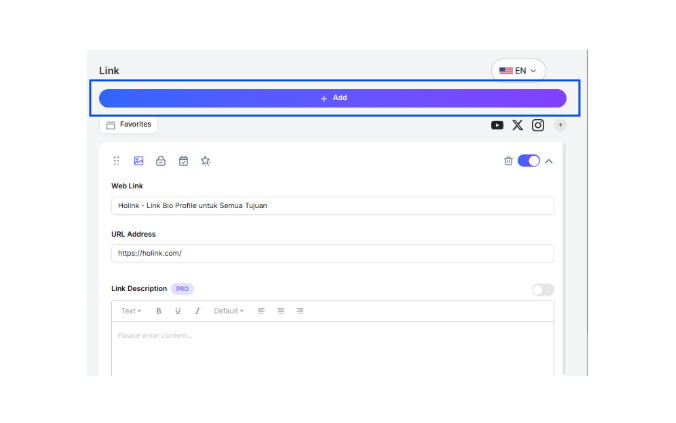
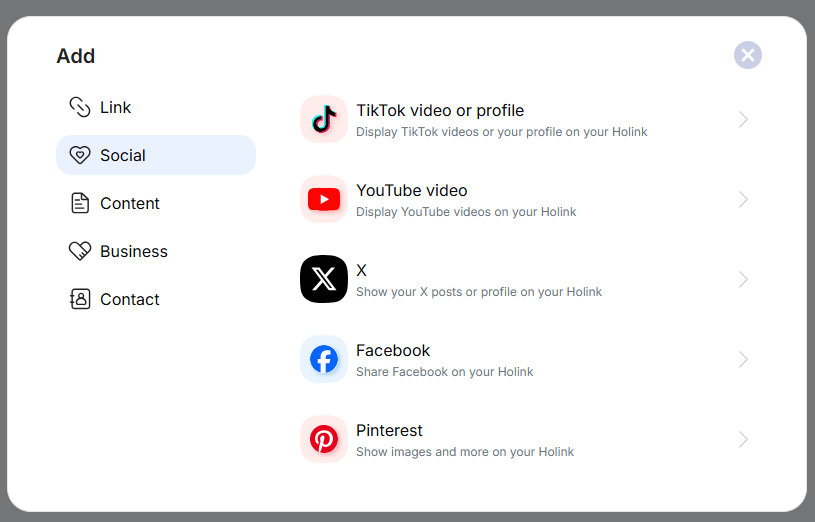
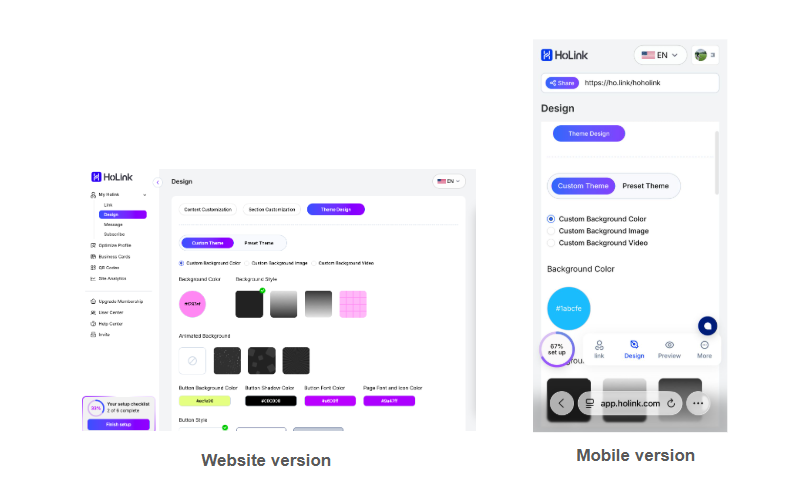
8. Customize the design of your link-in-bio page to match your identity and make it look more professional.
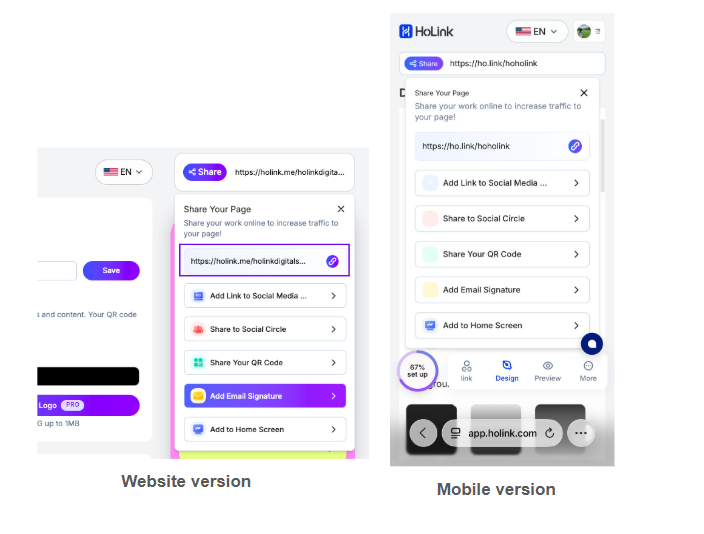
9. Share your link-in-bio page on your social media so your audience can easily access all your content, products, and social media accounts.
10. You can monitor your progress easily and ensure your profile page is fully optimized using the setup checklist.
Easy, right? Start creating a better and more attractive link in bio now.